ima Setup Guide
Add a custom model in ima using the same steps on desktop and mobile.
The Setup Steps Are the Same on Desktop and Mobile
Step 1: Open the Model Selector
At the bottom of the ima copilot chat screen, find the "DS Quick" button highlighted by the red box in Figure 1. Tap it to open the model selection menu.
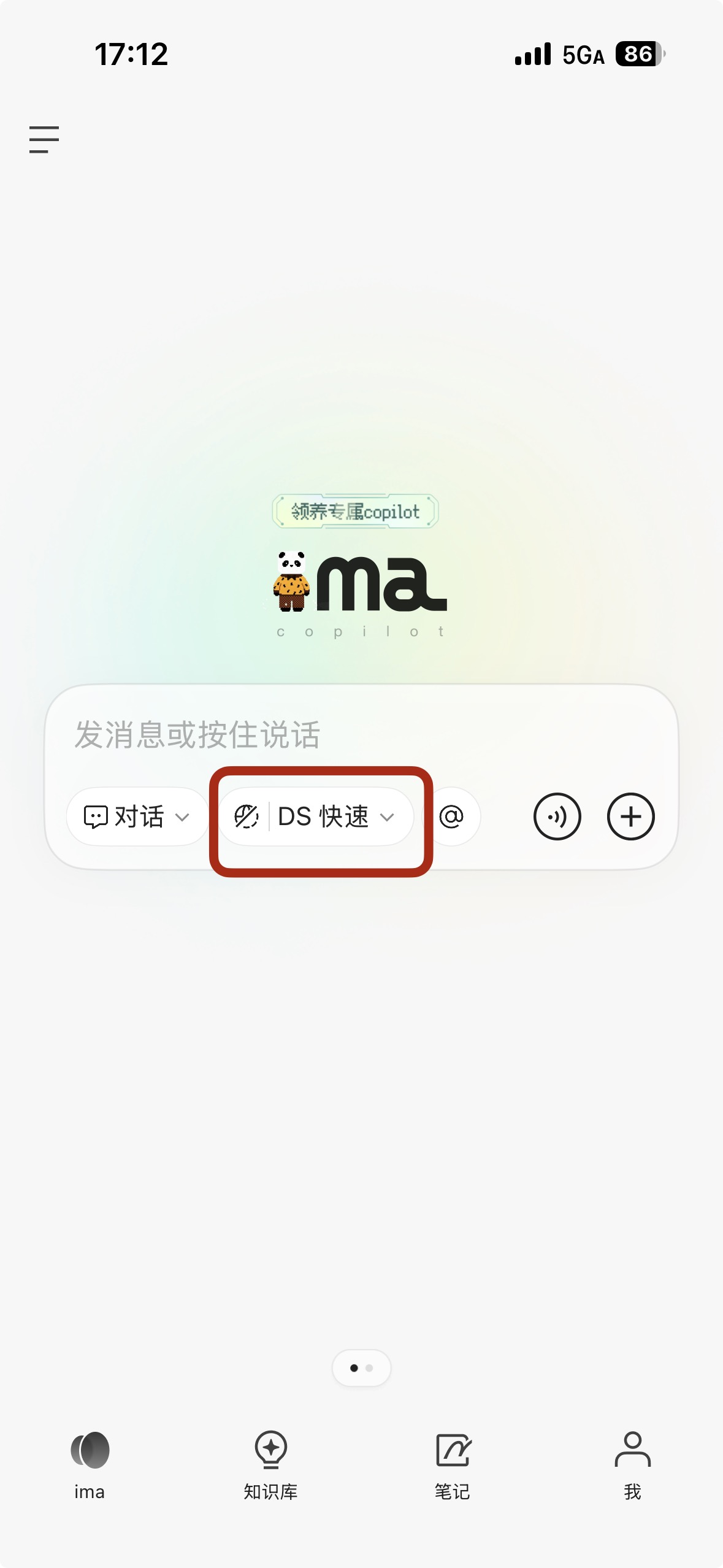 Mobile ima screen showing the row of chat controls below the message box…
Step 2: Open "Add Custom Model"
Find the "Add custom model" button in the model menu and tap it to open the custom model configuration page.
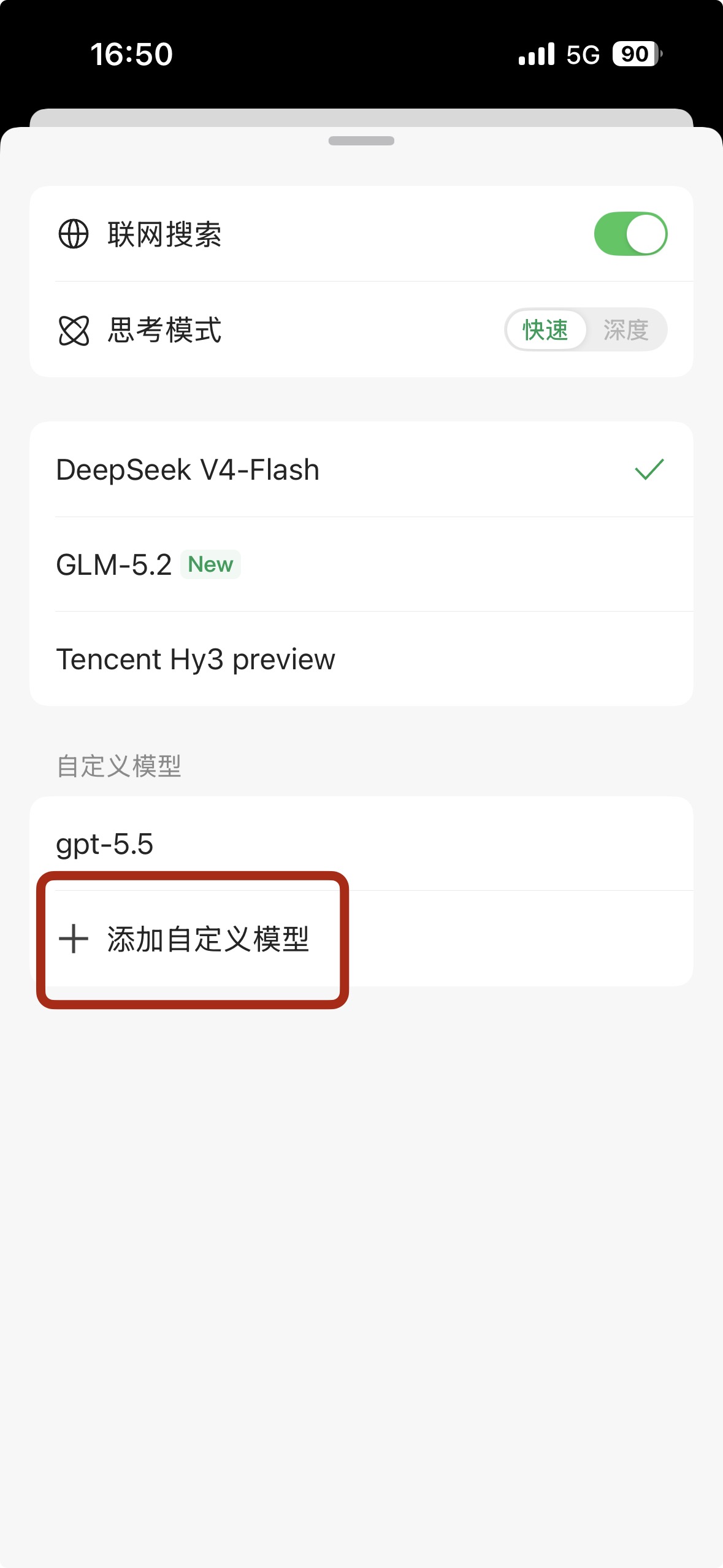 Mobile custom-model screen in ima, with online search and reasoning-mode…
Step 3: Select a Model Provider (Choose "Custom" if Needed)
On the "Add custom model" page, open the "Model provider" menu shown in Figure 4. You can choose a preset provider such as DeepSeek, Kimi, or Zhipu. To connect a third-party or self-hosted model, choose "+ Custom." Custom is selected by default, so you can skip this step if it is already active.
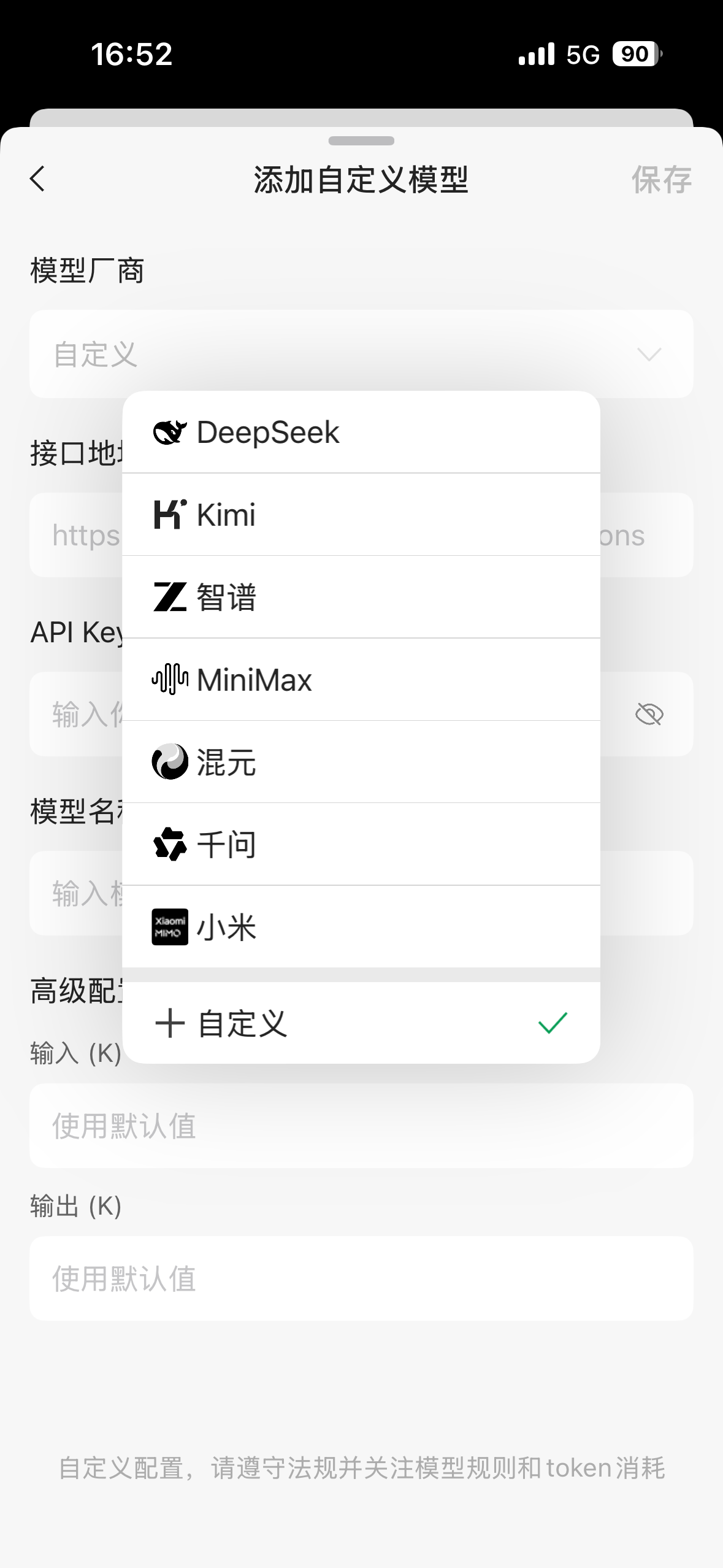 Expanded provider menu for a custom model in ima, listing providers such…
Step 4: Enter the Core Model Details
Enter the three required values highlighted in Figure 5:
- Endpoint: Enter the model's API endpoint (for example,
https://api.llm-token.cn/v1; replace it with the actual endpoint you want to connect). - API Key: Enter the model's API credential (in a format such as
sk-xxxxxx...; obtain it from the model provider). - Model name: Enter the model name (for example,
gpt-5.5orclaude-sonnet-4-6; it must match a model supported by the endpoint).
Leave the advanced input and output length settings at "Use default value."
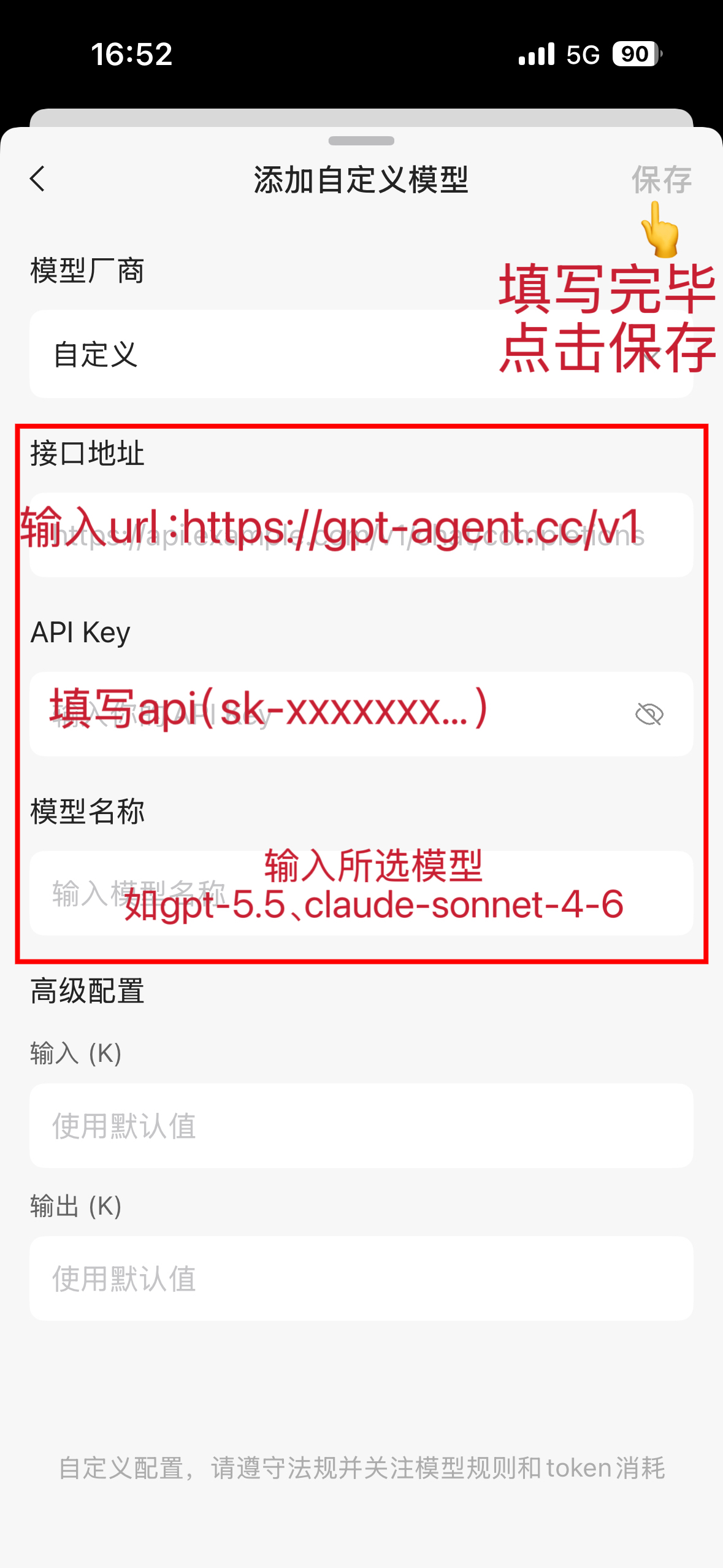 Custom-model configuration screen in ima showing the required endpoint h…
Step 5: Save the Custom Model
After entering the values, tap "Save" in the upper-right corner as indicated in Figure 5. The custom model is automatically added to the "Custom models" list, as shown in Figure 6 where claude-opus-4-8 has been added and is ready to select.
Later Use: Switch to a Custom Model
Return to the model selection menu by using the "DS Quick" button from Step 1. Your newly added model appears under "Custom models" as shown in Figure 6; tap it to switch models~
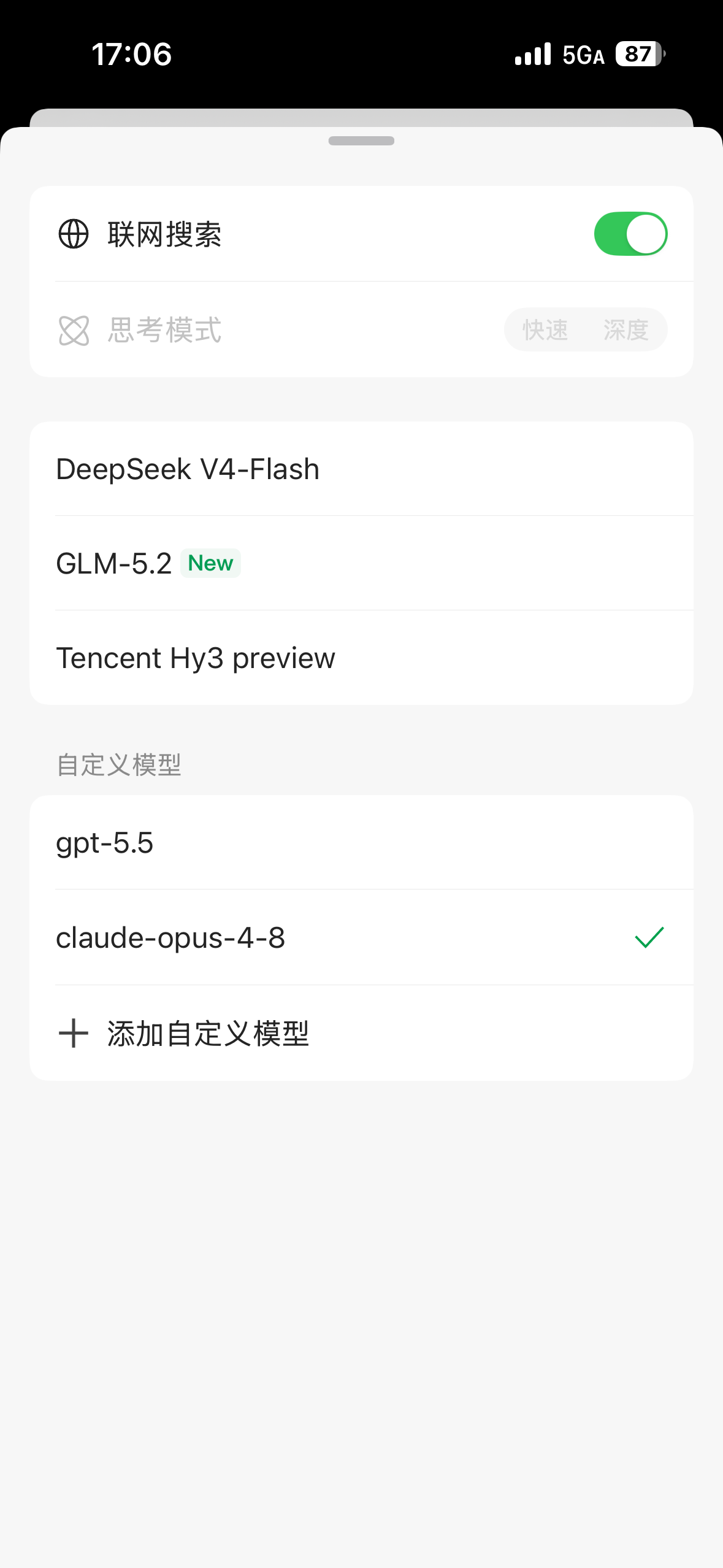 Mobile model selection menu showing online search and reasoning controls…
Use Cases
After connecting IMA to an external API, it works well for the following scenarios:
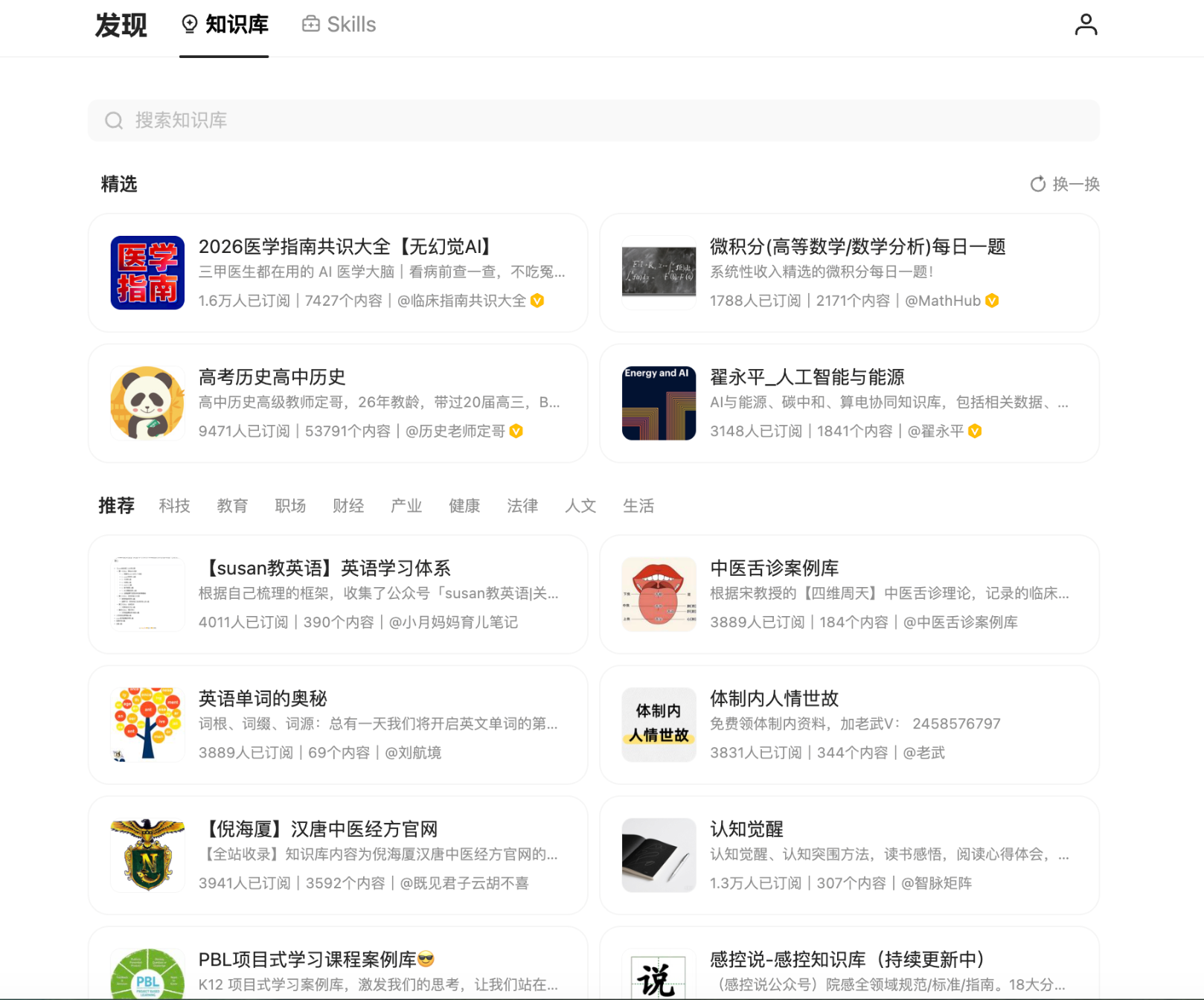 IMA knowledge-base screen with search, Discover, Knowledge Base, and Ski…
- Enterprise knowledge-base Q&A Upload policies, product materials, project records, and meeting notes to IMA. An external AI assistant can search the knowledge base through an API and answer employee questions from the retrieved information. Multiple AI systems or business applications can also share the same IMA knowledge base as a common source of organizational context.
- Content creation and asset management Store story ideas, articles, industry news, user feedback, and past copy in IMA. AI can search these materials by topic and produce newsletter articles, short-video scripts, community posts, or knowledge cards. In the OpenClaw + IMA example, OpenClaw reads a specified notebook and automatically turns its contents into shareable knowledge cards.
- Meeting notes and status reports After storing meeting notes, weekly reports, and project updates in IMA, AI can retrieve the relevant materials and produce task lists, weekly status reports, presentation scripts, or course summaries. The WorkBuddy + IMA example demonstrates the full workflow: retrieve course notes, then have AI draft a presentation script.
- Long-term memory for AI agents A common AI-agent problem is that the current conversation is useful but the next session starts without its context. IMA can serve as an external long-term memory layer: the agent writes important information to the knowledge base and retrieves it in later tasks. In the Hermes Agent + IMA implementation, IMA serves as the cloud knowledge base alongside local Obsidian data and a dedicated RAG system in a multilayer knowledge architecture.