Hermes Deployment Guide
Set up Hermes for terminal AI Agent workflows, including installation, model configuration, and troubleshooting.
Who this is for: Hermes Agent is an open-source terminal AI Agent from Nous Research. It is designed for users who need a local command line, file access, web, image, and voice tools, persistent memory, and messaging gateways. This guide follows the sequence: install the environment → install Hermes → configure an LLM API Gateway model → start chat / gateway → troubleshoot.
| Setting | Recommended Value | Description |
|---|---|---|
| Provider | More Provider / Custom / OpenAI Compatible | The label varies slightly by version. Choose the option that lets you enter a custom URL. |
| Base URL | https://api.llm-token.cn/v1 | Start with the root path that includes /v1. If it does not work, try https://api.llm-token.cn. |
| API Key | sk-xxxxxxxx | It is normal for the terminal not to display the key when you paste it. |
| Recommended model | claude-sonnet-4-6 | Fast responses with Agent support, image understanding, and a large context window. You can also choose another model from the model list. |
1. What Is Hermes?
Hermes Agent can chat in the terminal, run commands, read and write files, search files, call web and multimodal tools, and save long-term preferences through persistent memory. You can think of it as an AI Agent that keeps working on your local computer or server.
For beginners: Get command-line chat working before configuring Telegram, Discord, WeChat, or other messaging channels. Establishing this minimal working path first makes later troubleshooting much easier.
2. Choose an Installation Method
| System | Recommended Method | Command / Notes |
|---|---|---|
| Windows / macOS users | Hermes Desktop | Download the desktop installer first for the simplest setup. |
| Linux / macOS / WSL2 / Termux | Official one-line script | |
| Native Windows PowerShell | Official PowerShell script | |
| Reliable Windows option | WSL2 + Ubuntu | If the native Windows installation does not work smoothly, use WSL2. |
3. Install with WSL2 on Windows
- Open PowerShell as an administrator.
- Run the WSL installation command.
wsl --installIf installation gets stuck at 0%, use this command instead:
wsl --install --web-download -d Ubuntu- Restart your computer when prompted.
- Set a Linux username and password the first time you open Ubuntu.
- Press the Windows key and search for WSL or Ubuntu. If an entry appears, you are ready to continue.
 The Windows Subsystem for Linux (WSL) app icon. Search for WSL or Ubuntu…
Verify that WSL was installed successfully:
wsl --version4. Install Git and Hermes
Run the following commands in your WSL2 / Ubuntu terminal:
sudo apt update
sudo apt install git -y
git --version
Then install Hermes:
curl -fsSL https://hermes-agent.nousresearch.com/install.sh | bashAfter installation, reload your terminal configuration and verify the setup:
source ~/.bashrc
hermes version
hermes doctor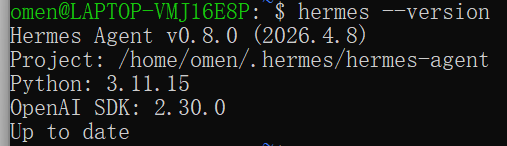 Example output from running hermes --version in a WSL2 / Ubuntu terminal…
Note: hermes updata in older documentation is a typo. The correct update command is hermes update.
5. Configure an LLM API Gateway Model
- Run the following command in the terminal where Hermes is installed:
hermes setup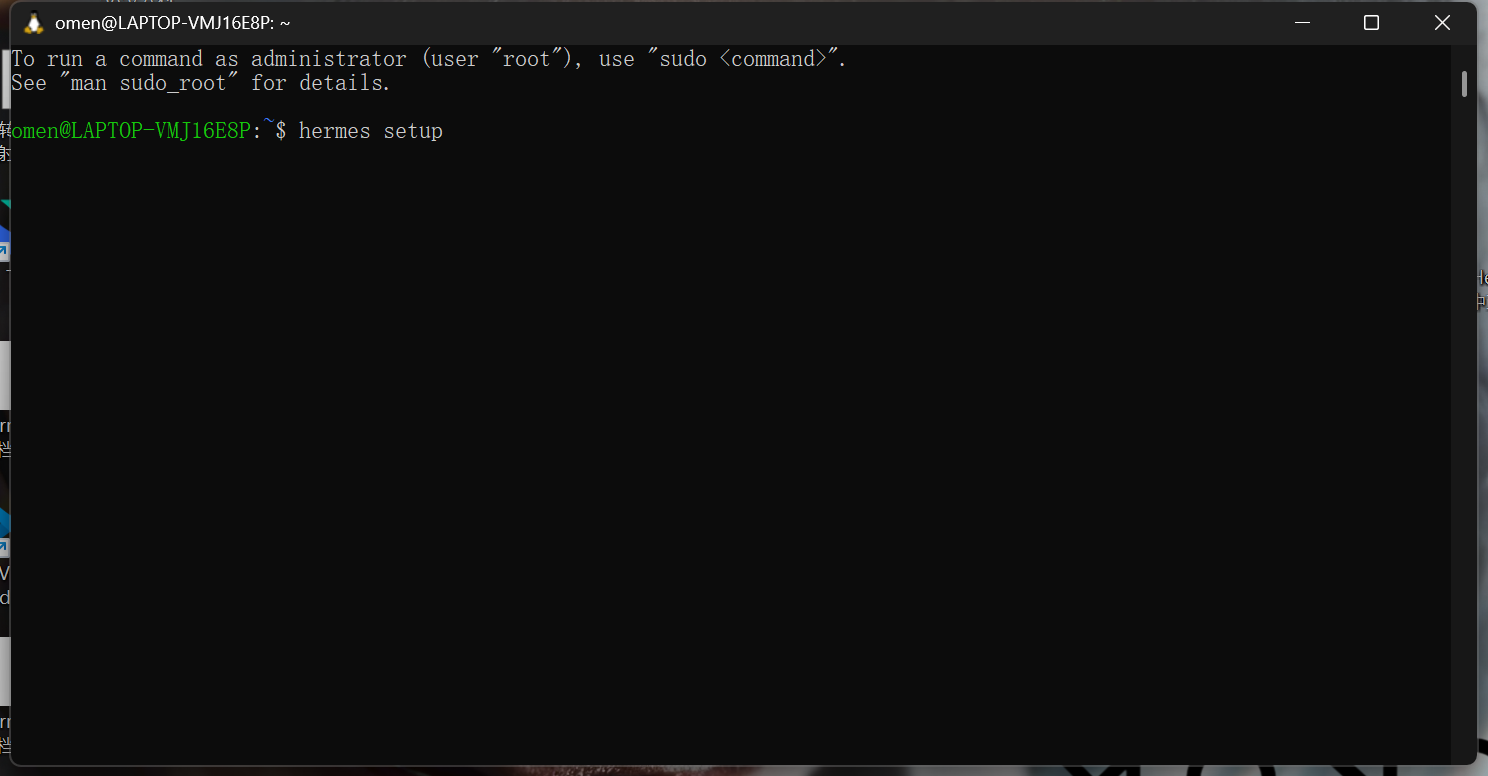 A terminal after running hermes setup. This starts the Hermes configurat…
- Select quick setup or model configuration.
- Select More Provider / custom provider.
- Select OpenAI Compatible or another protocol that accepts a custom URL.
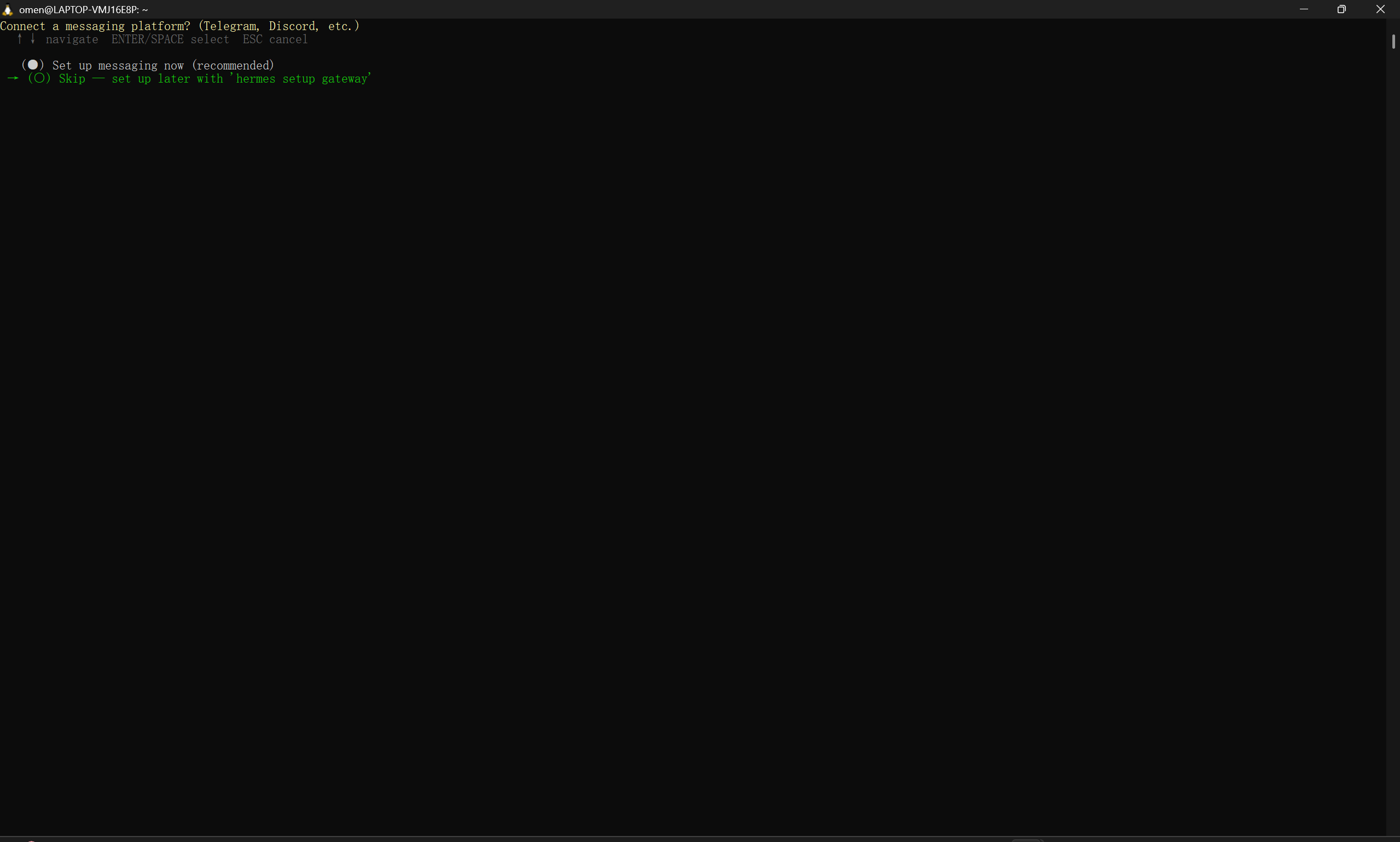 A dark Hermes terminal setup screen showing messaging platform options s…
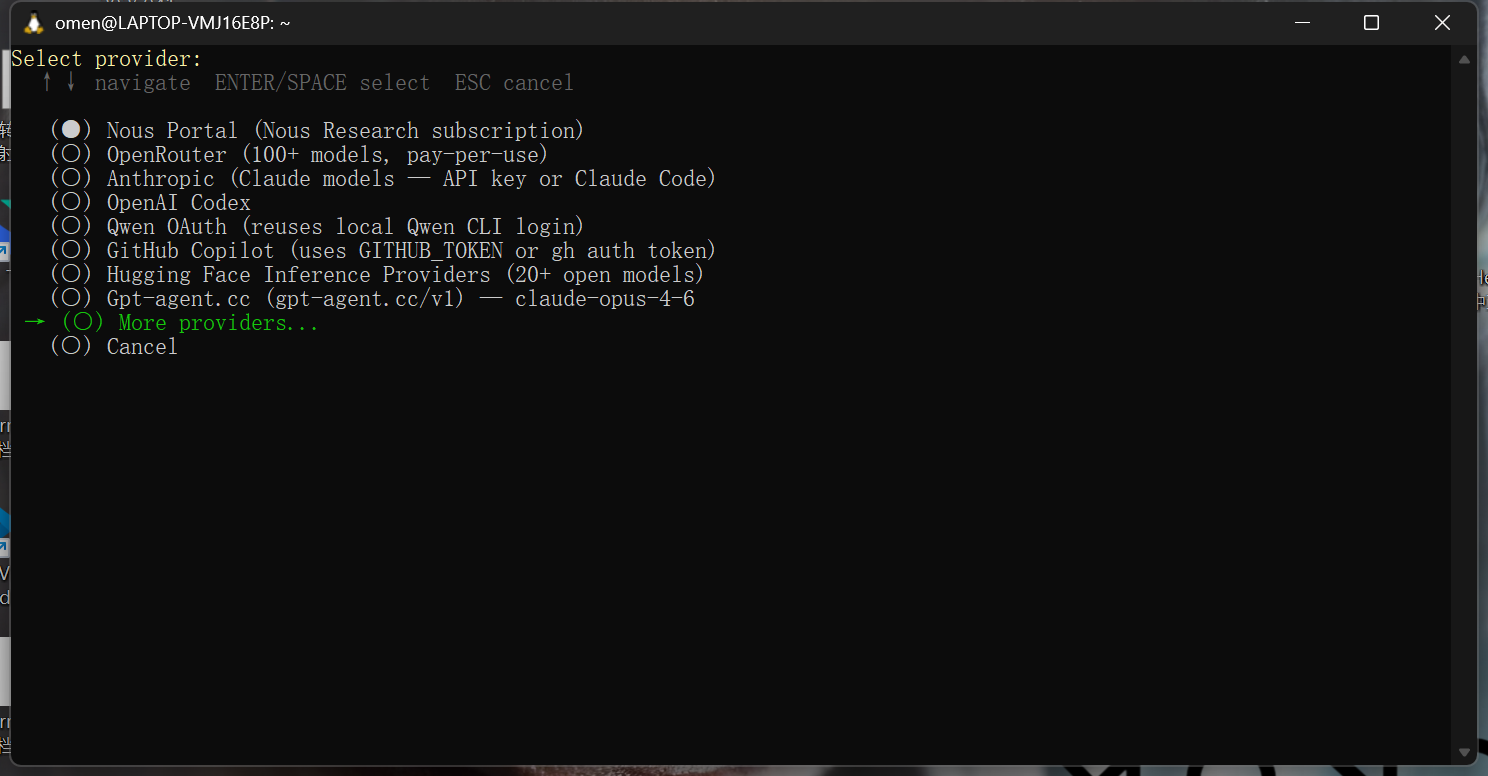 The provider selection screen in the Hermes terminal. Options such as No…
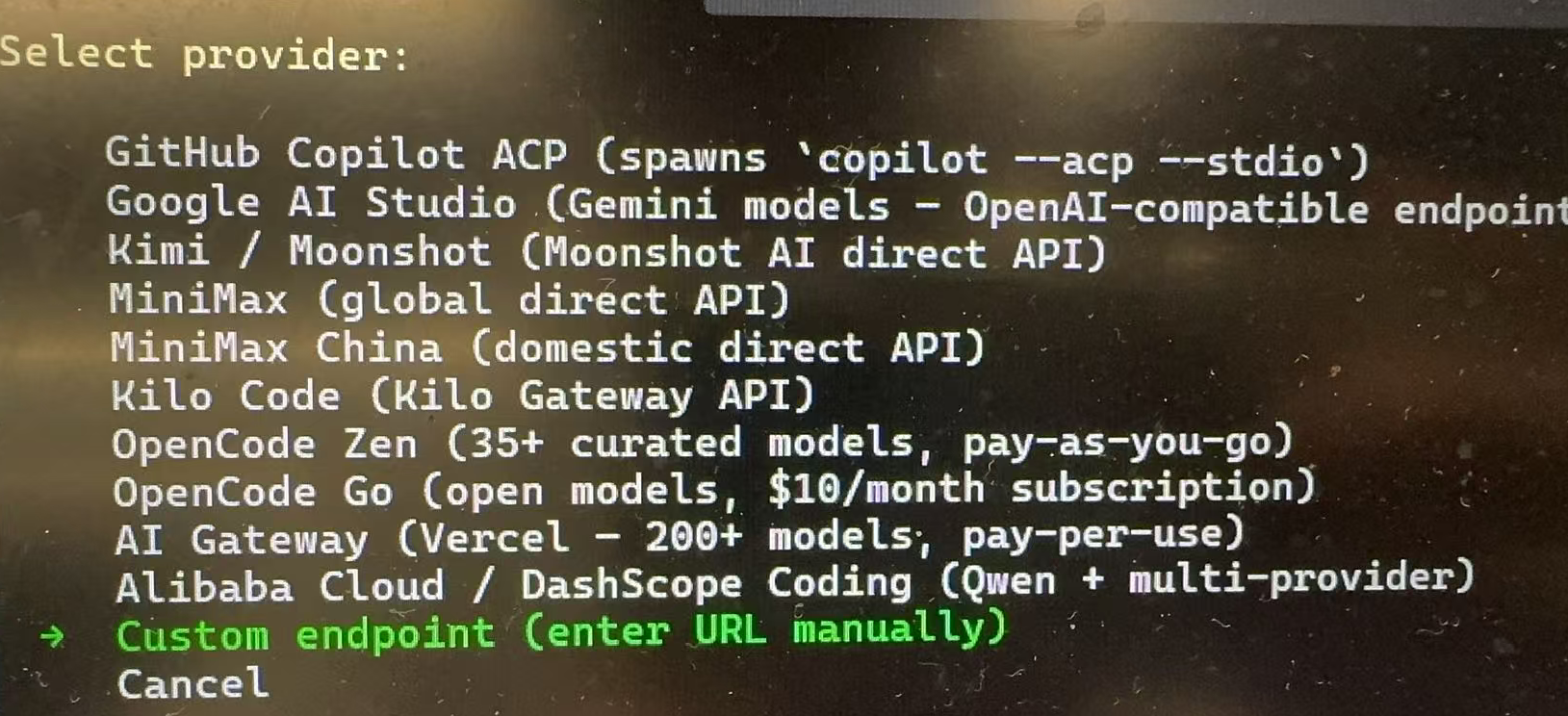 The Hermes provider selection screen with options such as GitHub Copilot…
When entering the URL, try this first:
https://api.llm-token.cn/v1If validation fails in your current version, try:
https://api.llm-token.cn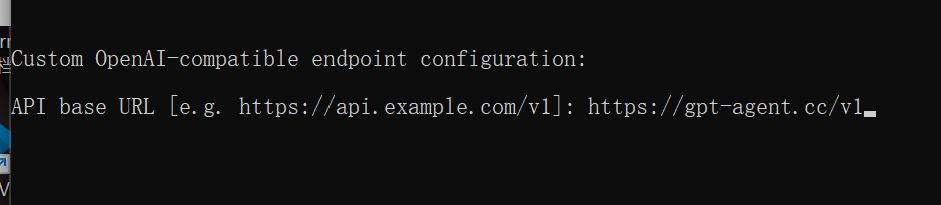 The custom OpenAI-compatible endpoint configuration screen in Hermes. Th…
- Paste the API Key. It is normal for the terminal not to display it. Press Enter after pasting.
- Start by selecting
claude-sonnet-4-6for testing. - If Hermes asks for a context length, you can enter a large context window for
claude-sonnet-4-6. If the client enforces strict limits, start with 32000, confirm that it works, and increase it gradually. - You can skip messaging channels the first time and configure the gateway after terminal chat is working.
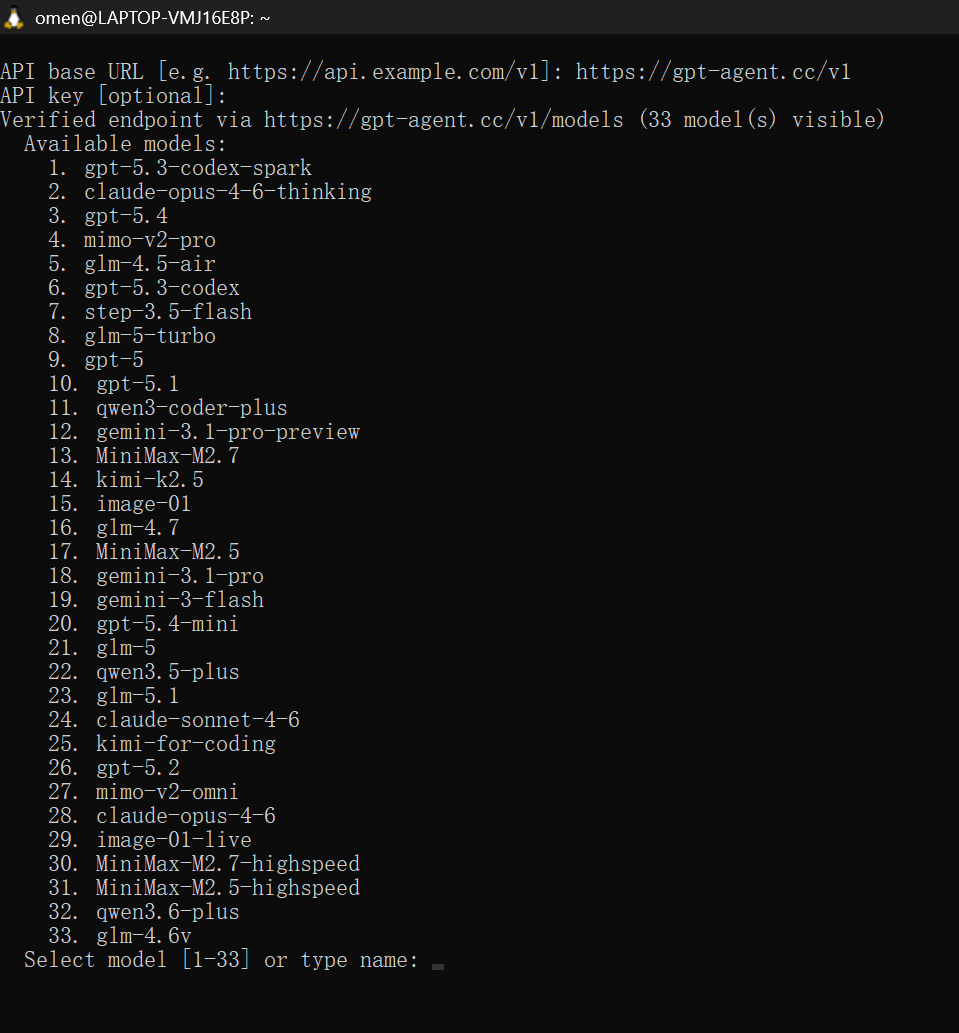 The Hermes terminal after the https://api.example.com/v1 endpoint has be…
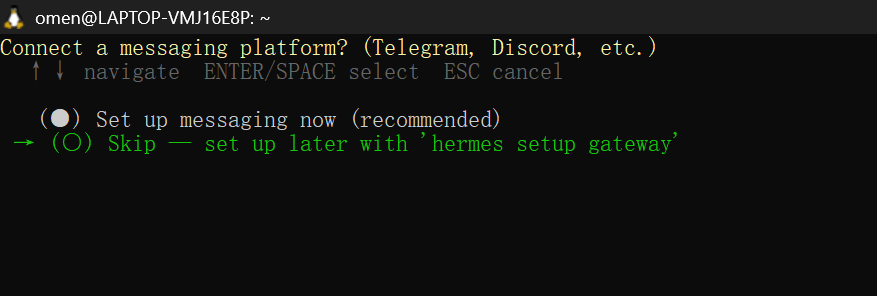 The messaging platform prompt shown before Hermes chat starts. The optio…
6. Start Chat and the Gateway
After configuration is complete, you can open chat directly. If the interface asks whether to start chat, enter Y.
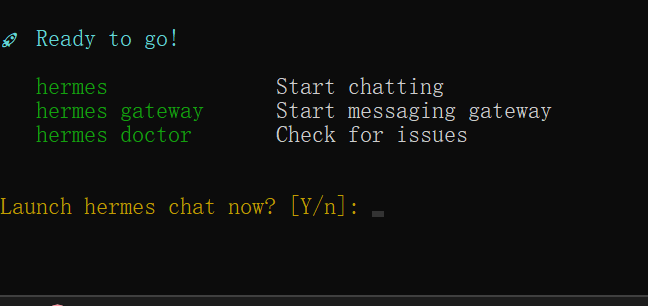 The Hermes setup completion screen showing Ready to go and commands for…
If you configured a messaging channel but it does not respond, start or check the gateway:
hermes gateway
hermes gateway status
7. Common Commands
| Command | Purpose |
|---|---|
hermes | Start chatting. |
hermes setup | Open the full setup wizard again. |
hermes model | Switch models or providers. |
hermes doctor | Diagnose dependencies, configuration, and service status. |
hermes update | Update Hermes. |
hermes --continue | Resume the previous session. |
8. Troubleshooting
| Issue | Solution |
|---|---|
hermes: command not found | Run source ~/.bashrc or reopen the terminal. If the command is still unavailable, check your PATH. |
| Model validation fails | Check the URL, API Key, and model ID. Try https://api.llm-token.cn/v1 first. |
| Responses are cut off or the context is too small | Return to hermes setup or adjust the context length in the configuration file. Confirm the basic setup works before increasing the context window. |
| WSL2 cannot access a local Windows service | On Windows 11, try WSL mirrored networking. On Windows 10, use the default WSL gateway IP instead of localhost. |
| Configuration is missing after an update | Run hermes config check and hermes config migrate. |
[wsl2]
networkingMode=mirrored
wsl --shutdown