OpenClaw Setup Guide
Configure an OpenClaw model provider with a ready-to-use settings file and step-by-step screenshots.
Replace Your Model Configuration with This File
"custom-gpt-agent-cc": {
        "baseUrl": "
https://api.llm-token.cn/v1
",
        "apiKey": "",
        "api": "anthropic-messages",
        "models": [
          {
            "id": "kimi-for-coding",
            "name": "kimi-for-coding (Custom Provider)",
            "reasoning": false,
            "input": [
              "text"
            ],
            "cost": {
              "input": 0,
              "output": 0,
              "cacheRead": 0,
              "cacheWrite": 0
            },
            "contextWindow": 250000,
            "maxTokens": 8192
1️⃣ Enter this command in a Linux, cloud server, Mac, or Windows terminal window.
openclaw onboard2️⃣ Select Yes.
 An OpenClaw confirmation prompt. The orange warning explains that the fe…
3️⃣
 The Onboarding mode selection screen in OpenClaw. QuickStart, which lets…
4️⃣
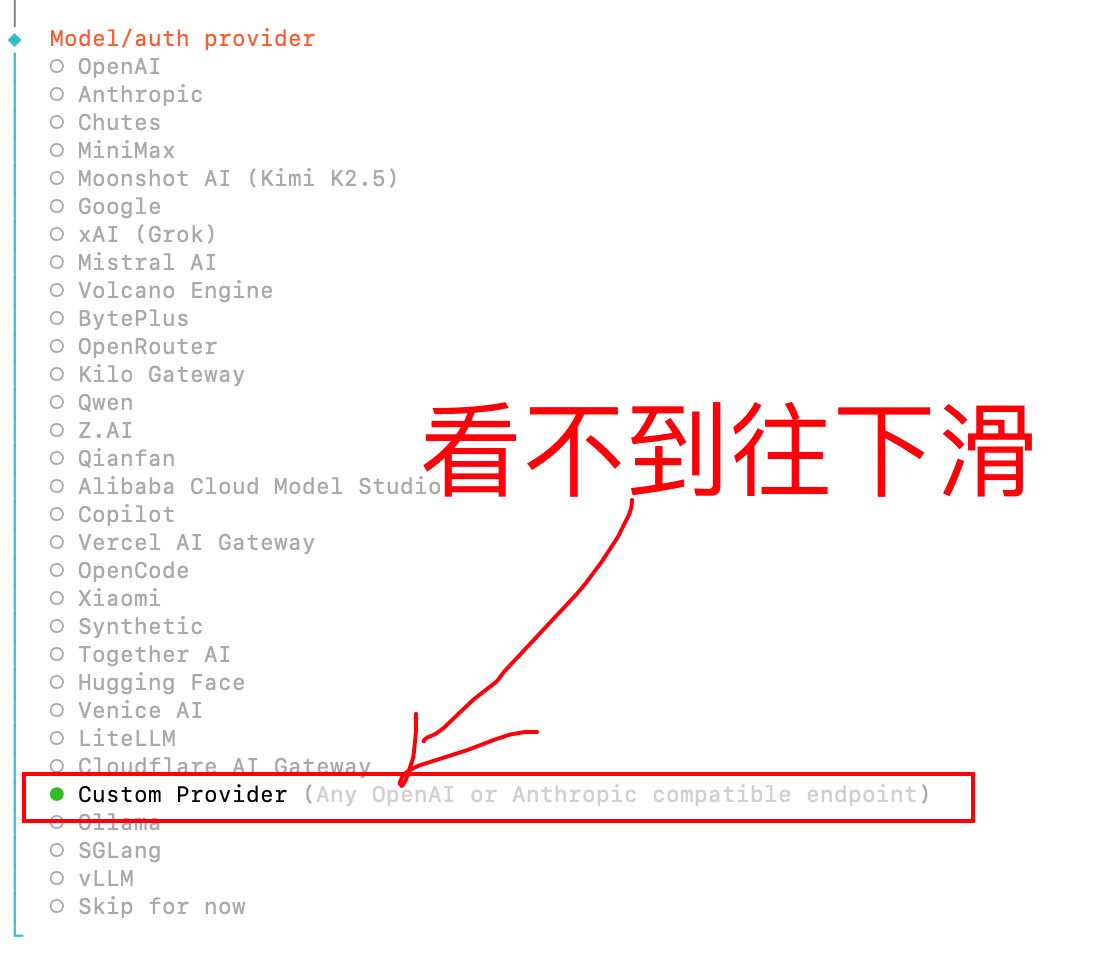 The Model and authentication provider selection screen in OpenClaw. Prov…
5️⃣ Enter our URL. If you get an error, enter https://api.llm-token.cn instead. Make sure to include https and do not omit the s.
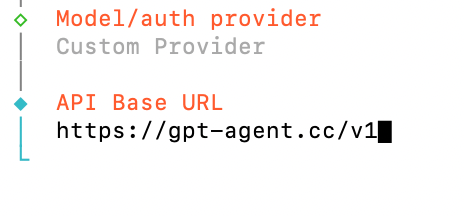 The custom provider API Base URL screen in OpenClaw. Model and authentic…
6️⃣ Option 2 is recommended.
Option 1
Select the third option, Unknown.
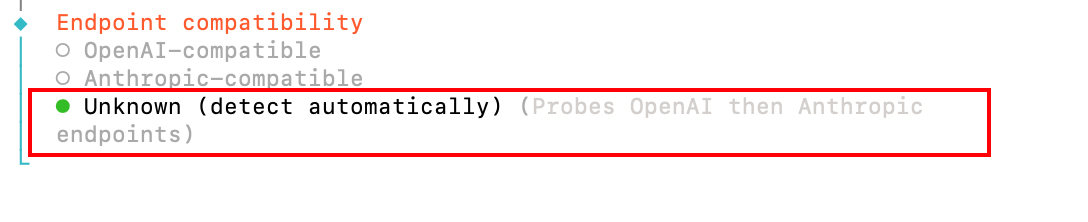 The Endpoint compatibility screen in OpenClaw. OpenAI-compatible and Ant…
Option 2
If you select claude-sonnet-4-6, choose Anthropic-compatible as shown below.
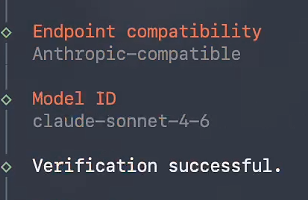 The OpenClaw model configuration for Option 2 when using claude-sonnet-4…
7️⃣
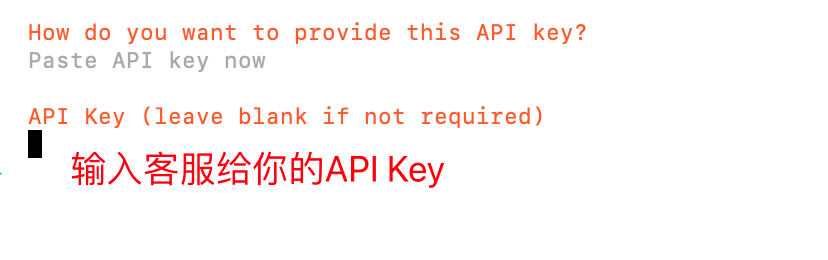 The API Key entry step in OpenClaw. The screen prompts you to paste the…
9️⃣ Enter the model name you want to use here. We recommend claude-sonnet-4-6.
claude-sonnet-4-6 The Model ID entry screen in the OpenClaw setup guide. The field shows e…
🔟
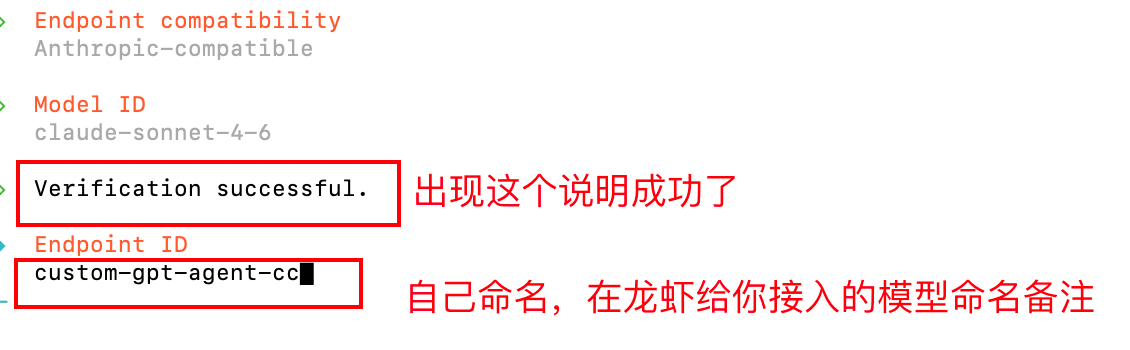 The successful model validation screen in OpenClaw. Endpoint compatibili…
Press Enter at this step.
 The optional Model alias screen in OpenClaw. The field shows examples su…
Summary: In OpenClaw, open the custom Provider or model configuration option.
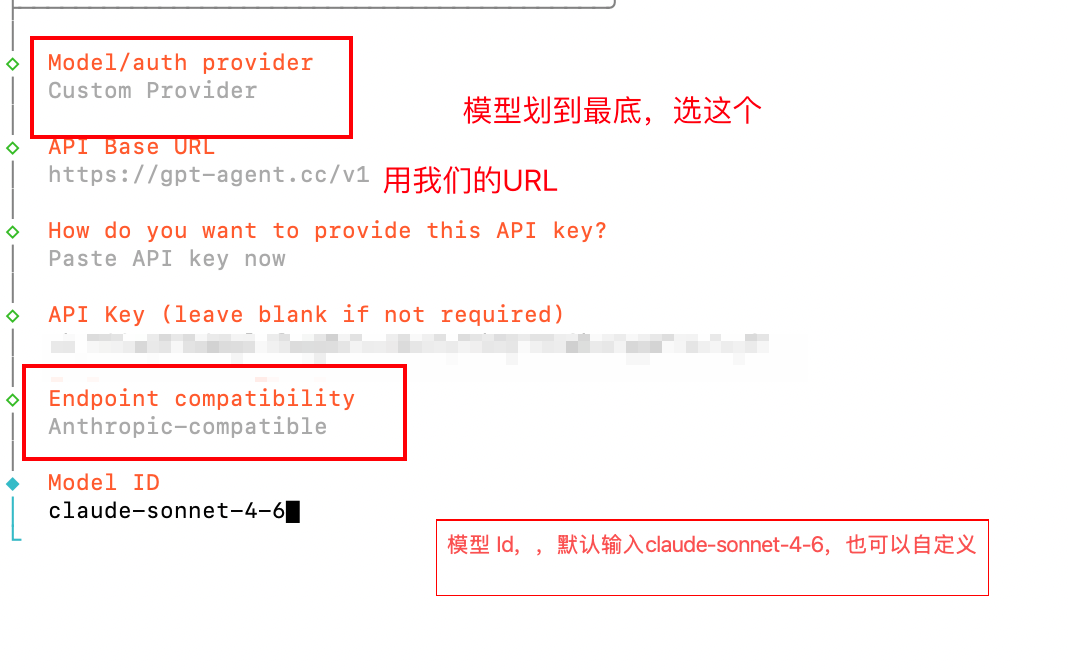 A summary of the OpenClaw model configuration. Model and authentication…
LLM API Gateway Image Generation Guide
Learn the image generation endpoint, model selection, parameter settings, and request methods.
Tencent Cloud / OpenClaw Custom Model Configuration
Use a directly verifiable JSON5 example to explain how to fill in the fields for the interfaces compatible with OpenAI and Anthropic.