OpenCode Setup: API Key, Base URL and Model Config
Set up OpenCode in the terminal or desktop app: install it, enter your API key and Base URL, configure a model ID, and check common connection errors.
Connect OpenCode without CC Switch
OpenCode can connect directly to this gateway. You need an API key, the gateway Base URL, and an exact model ID enabled for that key. CC Switch is optional; its screenshot walkthrough follows this quick start.
- Install OpenCode using an option below, then start
opencode. - Run
/connect, choose Other, enter provider IDllm-gateway, and paste your key into the credential prompt. Do not put a real key in a committed configuration file or screenshot. - Merge the provider below into your project's
opencode.json, or use~/.config/opencode/opencode.jsonfor a user-wide setup. Preserve other providers and settings. ReplaceYOUR_CHAT_MODEL_IDwith a currently available Chat Completions model from the model and pricing catalog.
{
  "$schema": "https://opencode.ai/config.json",
  "provider": {
    "llm-gateway": {
      "npm": "@ai-sdk/openai-compatible",
      "name": "LLM API Gateway",
      "options": {
        "baseURL": "https://api.llm-token.cn/v1"
      },
      "models": {
        "YOUR_CHAT_MODEL_ID": {
          "name": "My gateway model"
        }
      }
    }
  }
}
Restart OpenCode, run /models, and select your model under LLM API Gateway. Keep /v1 in this provider's Base URL; do not append /chat/completions or remove the version prefix to work around an unrelated authentication error.
This example uses the Chat Completions adapter. A Responses-only model requires @ai-sdk/openai and a gateway route that supports that protocol. Seeing a model in the selector does not prove that tool calls and streaming work: first test a short question, then a read-only code inspection in a disposable project. API usage may incur charges.
Check the failure before changing your setup
- 401: check the full key and the provider ID used by
/connect. - 404 or unsupported endpoint: check the Base URL and Chat Completions versus Responses adapter.
- Model missing: check the exact ID in
models, your key's access, and any project-level overrides. - 429 or quota error: check remaining quota and rate limits before retrying; repeated retries are not a configuration fix.
Compare available routes in the Chinese LLM API guide, get a gateway API key, or check the endpoint reference if you already have one.
Configuration reference checked September 17, 2026: OpenCode custom providers and configuration documentation. This is a setup reference, not a claim that every model has been end-to-end tested.
Use case: OpenCode is an open-source AI coding tool available in both terminal and desktop versions. Use this guide to install OpenCode, add an OpenAI-compatible LLM API Gateway with your API key and Base URL, switch models, and verify the setup.
For direct setup, use the native provider configuration above. CC Switch is optional; the screenshots below cover that workflow. Model names in screenshots are examples, so select an exact ID currently enabled for your key.
| Setting | Recommended value | Notes |
|---|---|---|
| Base URL | https://api.llm-token.cn/v1 | Keep the version prefix for the OpenAI-compatible provider; check the key and protocol separately if a request fails. |
| API Key | sk-xxxxxxxx | Enter your complete LLM API Gateway Key. |
| Model ID | Full model name from the model list | It must match exactly. |
1. Install OpenCode
Choose one installation method. The npm option requires Node.js and npm; the Homebrew option requires Homebrew. After installation, run opencode --version, then run opencode from your project directory. If the command is not found, reopen the terminal and check the installation path before changing provider settings.
| System / method | Command |
|---|---|
| npm | |
| macOS / Linux Homebrew | |
| Install script | |
For the desktop app, download the installer from the official website: https://opencode.ai/. The terminal and desktop versions can share the same model configuration.
2. Add an LLM API Gateway Provider (API Key + Base URL)
If you already use CC Switch, follow the screenshots below to add a custom provider. For the native setup, /connect saves the credential while opencode.json defines the provider and models: both must use the same provider ID, such as llm-gateway in the configuration above. Adding a key alone does not create the custom model list.
- Open CC Switch and select the option to add a custom provider.
- Enter a provider name, such as "LLM API Gateway."
- Set the Base URL to
https://api.llm-token.cn/v1. - Enter your complete Key in the API Key field.
- Enter the full model name from the model list in the Model ID field.
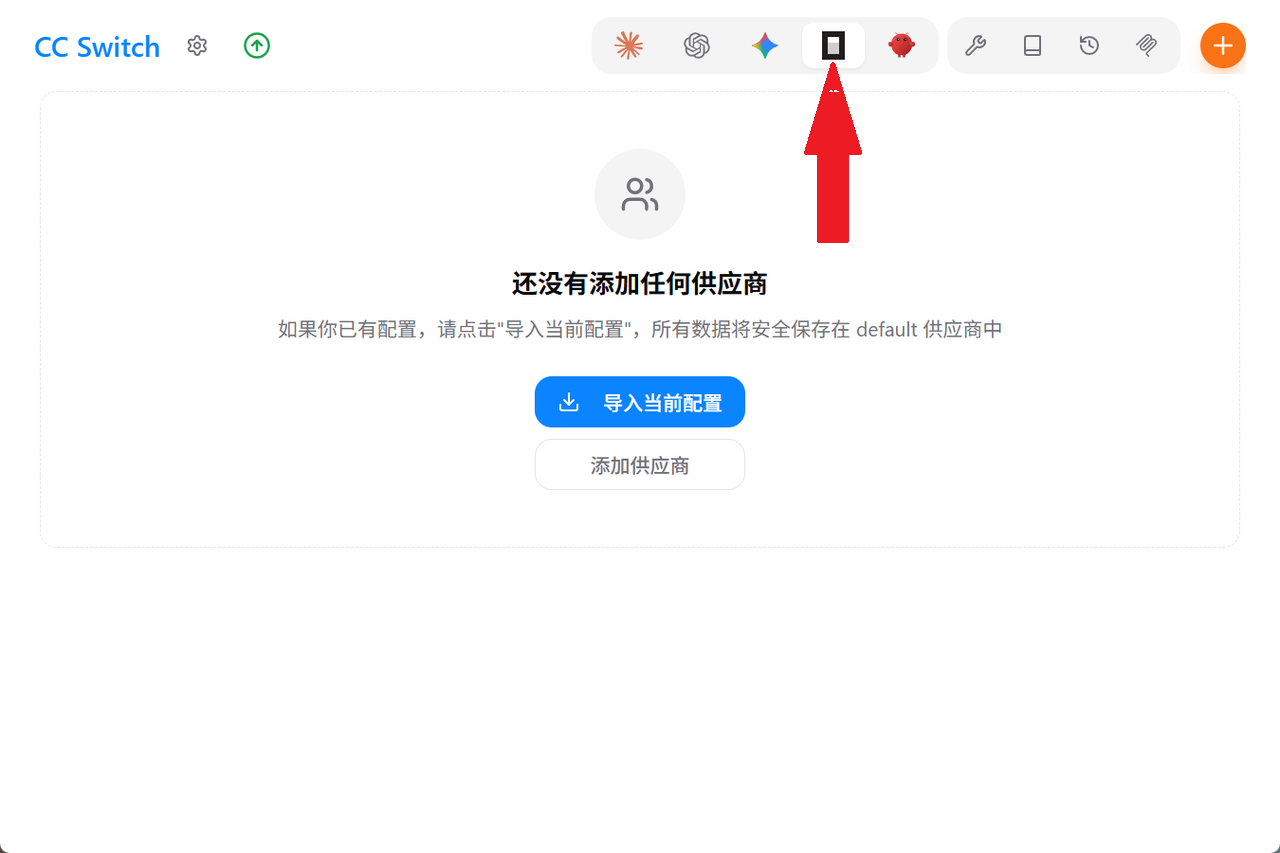 CC Switch screen used with OpenCode, showing that no provider has been a…
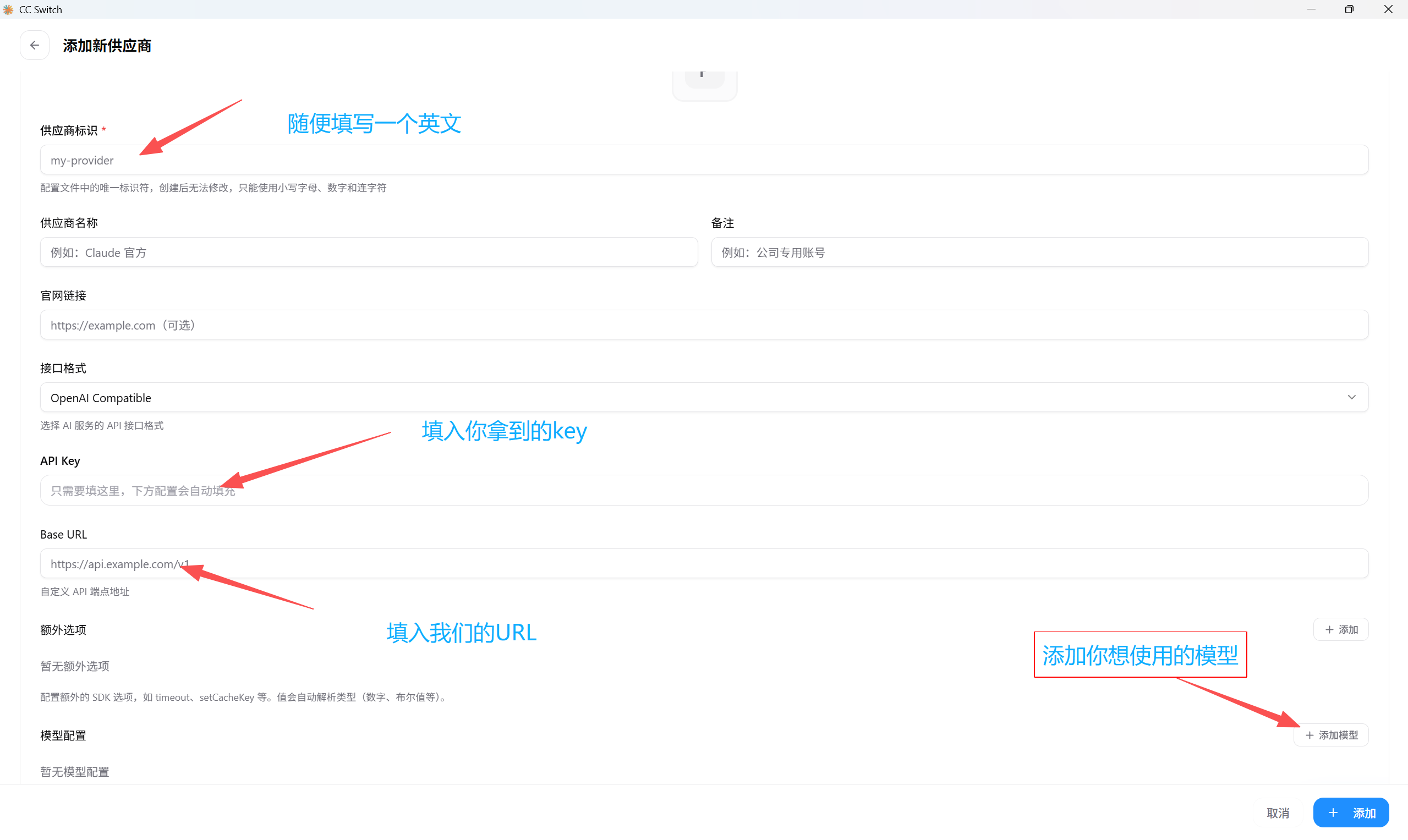 Add-provider screen for OpenCode and CC Switch, with fields for provider…
3. Switch Models in the Terminal
- Open a terminal and run
opencode. - After OpenCode starts, press
Ctrl + P. - Find Switch Model and press Enter.
- Scroll to the custom-model list and select the model you just configured.
You can also type /models in OpenCode to open the selector directly. The display name is a label; requests use the exact model ID in the provider configuration. If the selector is empty, check opencode auth list and opencode models in your terminal, then compare the saved provider ID and model configuration.
opencode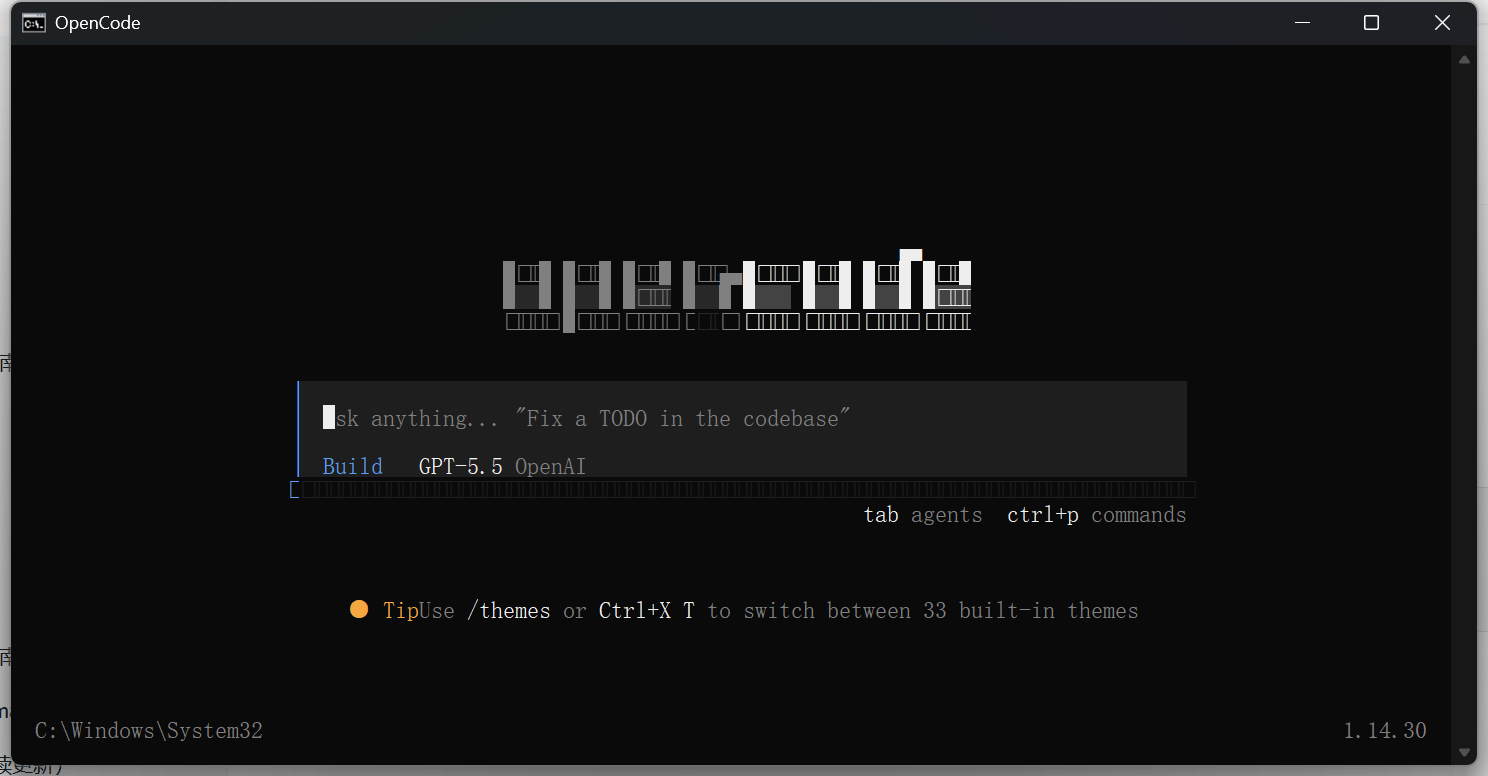 OpenCode terminal interface with the current GPT-5.5 OpenAI model displa…
Ctrl + P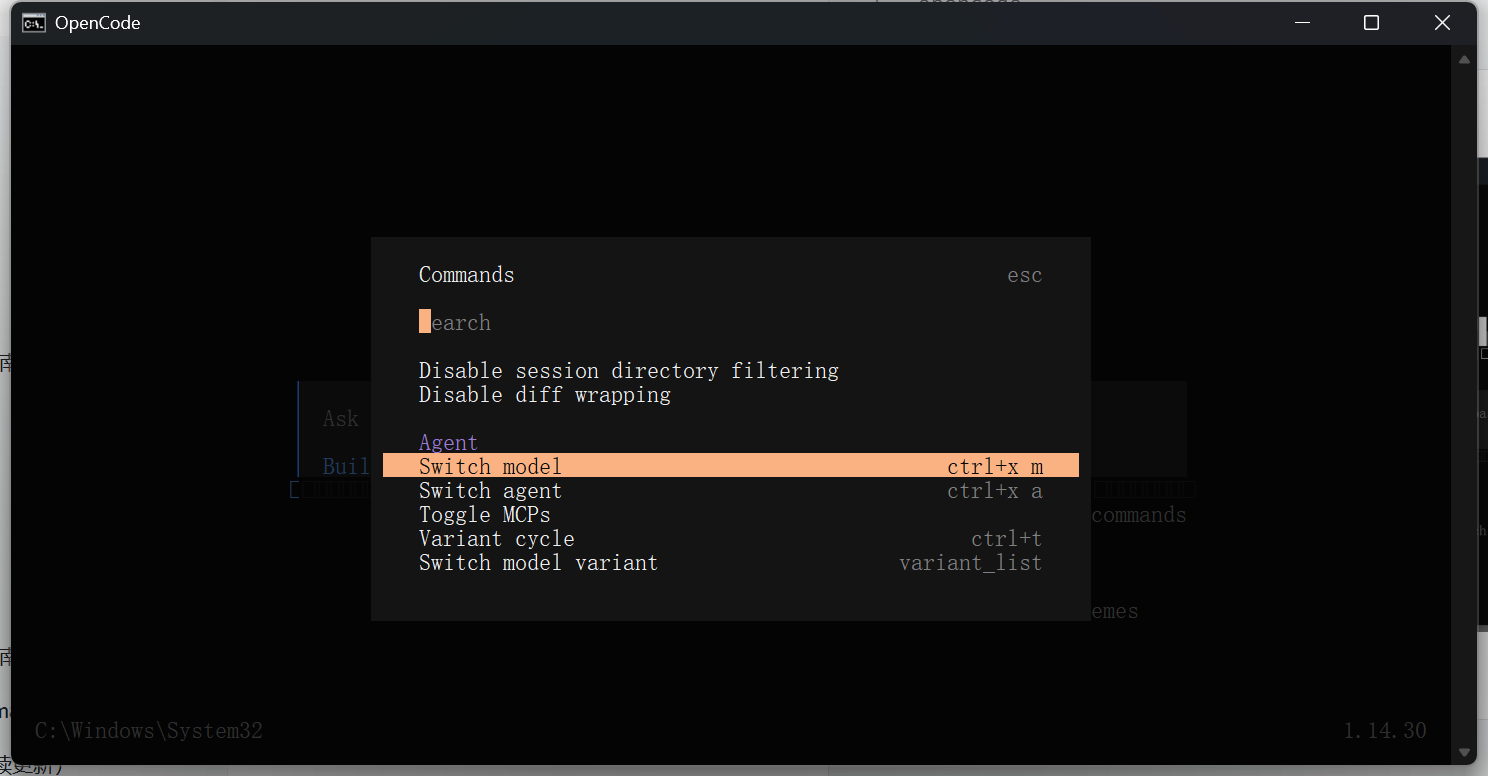 OpenCode terminal command menu with Switch model highlighted and the ctr…
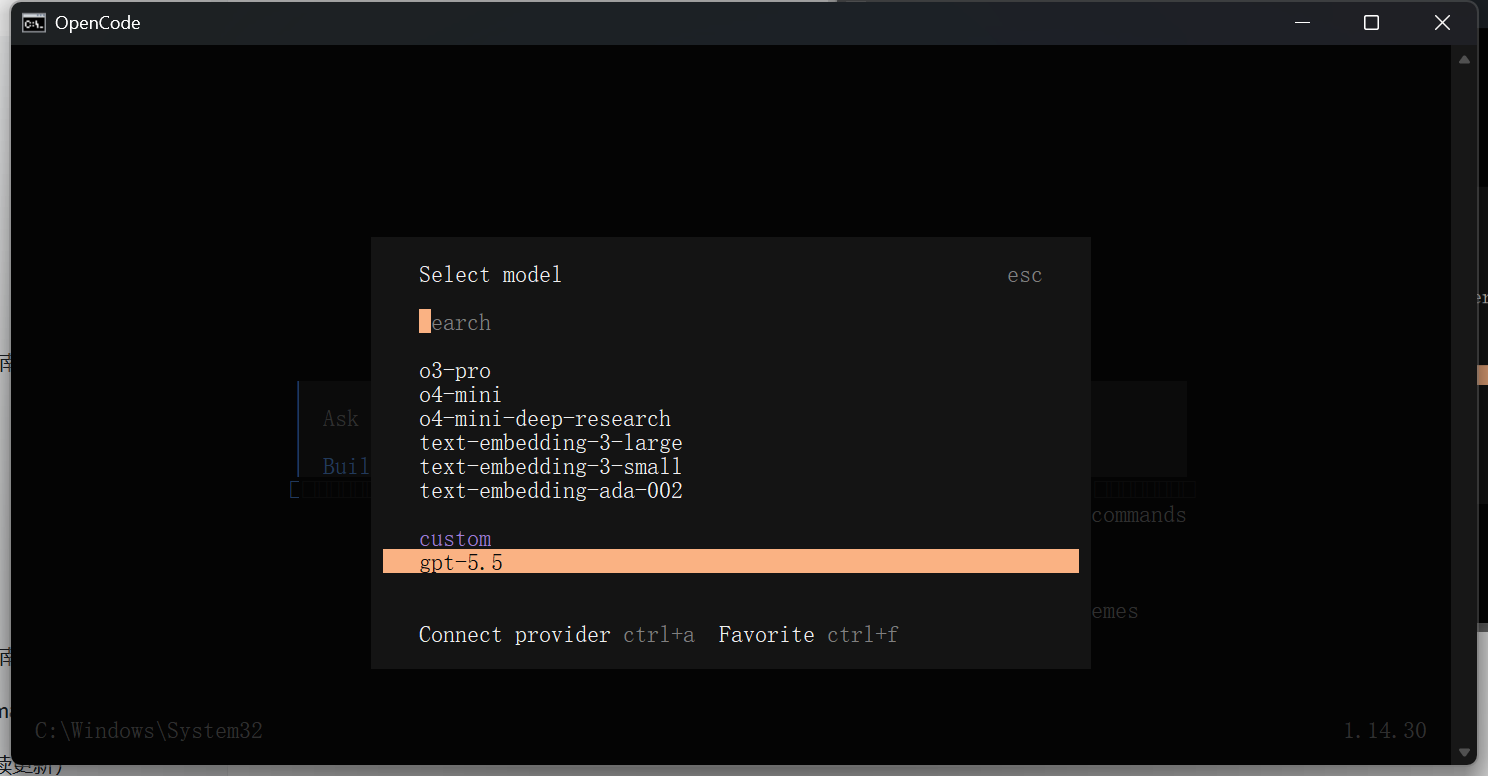 OpenCode Select model screen showing built-in models and a custom gpt-5.…
4. Use the Desktop App
Open the OpenCode desktop app, find your configured model in the model selector, and select it to begin. If terminal and desktop results differ, check that they use the same project and provider settings, then fully quit and reopen the desktop app. A project-level opencode.json can override the global configuration.
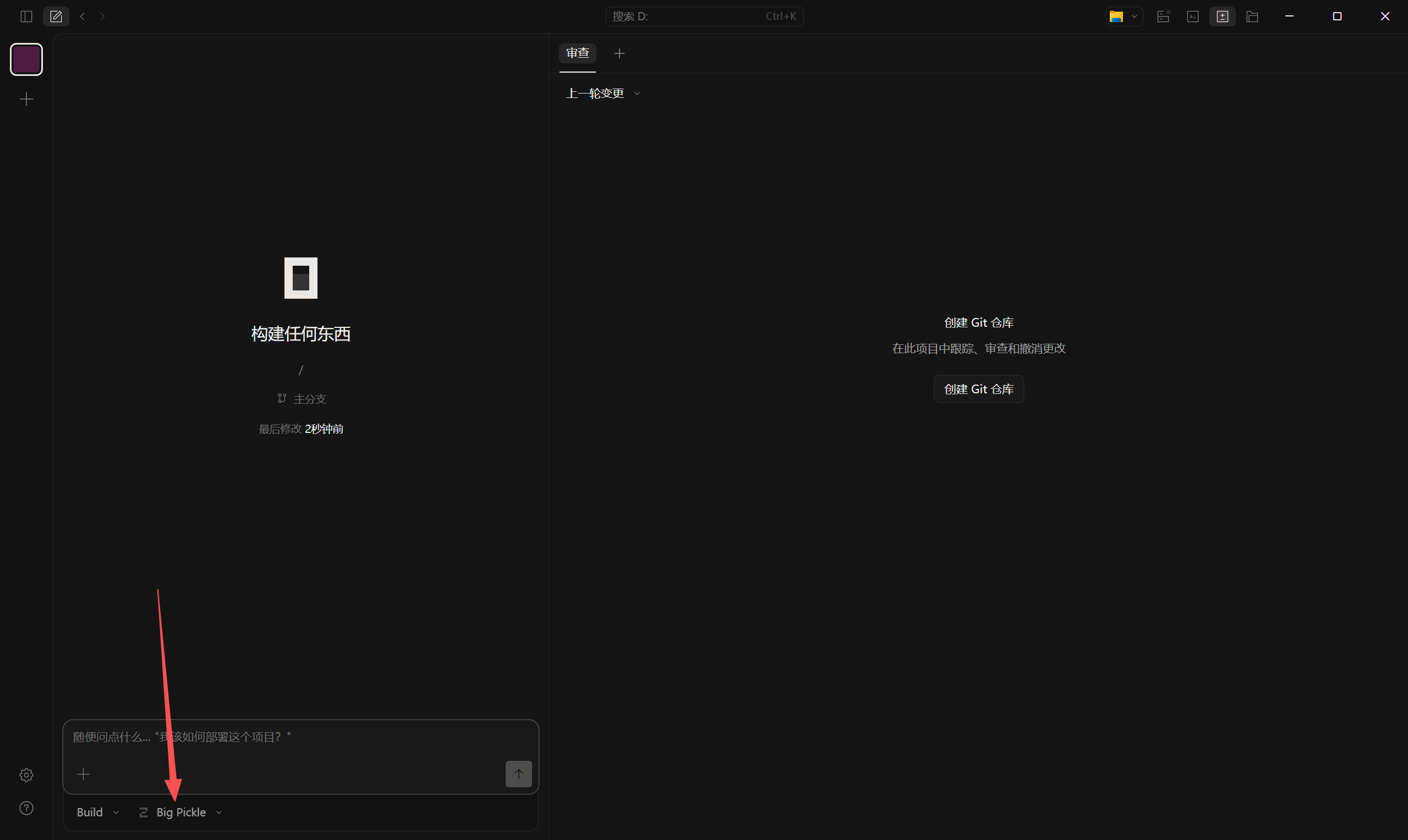 Dark OpenCode desktop interface with the Big Pickle model option highlig…
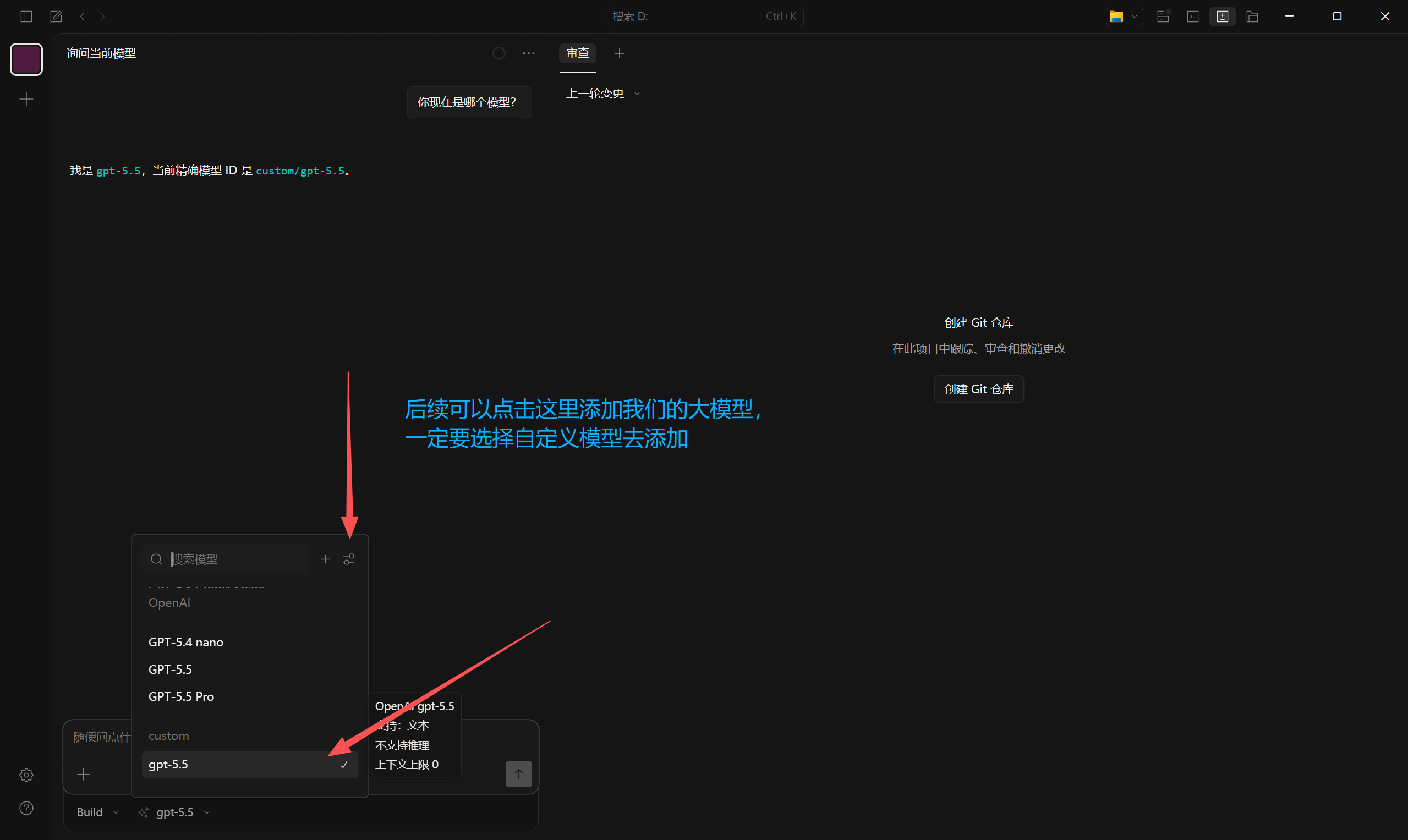 OpenCode desktop model menu showing options such as GPT-4 nano and GPT-4…
5. Verification and Troubleshooting
First send a small prompt such as Reply with exactly OK. Do not use tools. A completed reply checks basic inference, not coding-agent compatibility. Next, in a project with a non-sensitive README, ask Read README.md and summarize it. Do not edit files or run shell commands. Confirm that OpenCode actually reads the file and finishes the response; a model merely appearing in the selector does not verify tool calls or streaming.
| Symptom | Resolution |
|---|---|
| opencode does not start | Check opencode --version and PATH. If the application starts and then exits, run opencode --print-logs to capture the error. |
| The custom model is missing | Confirm that CC Switch saved the configuration, or that the native provider ID matches the credential. Check models and project-level overrides, then restart OpenCode. |
| The request fails | Read the HTTP status and error message first. Check the Base URL, API Key, and exact model ID; use https://api.llm-token.cn/v1. Keep the version prefix and check Chat Completions versus Responses compatibility before changing the endpoint. |
| The model responds slowly | Compare the same short prompt on a currently available route. Earlier examples such as claude-sonnet-4-6 or MiniMax-M3-highspeed are not availability or latency guarantees; check the live catalog and your key's access. |
For ProviderModelNotFoundError, check the full providerId/modelId reference, not just the display name. For ProviderInitError, check that the JSON is valid and the provider package matches the API protocol. Preserve other settings when editing an existing configuration.
For more detail, run opencode --print-logs --log-level DEBUG and reproduce one short request. Record the OpenCode version, selected provider/model, time, HTTP status and error text. Redact API keys, authorization headers and private project content before sharing logs with support. These checks help distinguish installation, configuration, authentication and upstream errors; this guide does not claim that every gateway model has been tested with OpenCode.